
A Leave Reset can be performed for an individual employee, for all employees of a department, or for all employees in the institution.
For an individual employee or department:
- At the top of your dashboard, click the module access icon > Administration > Human Resource > Employee Leave Management > Leave Reset to open the Leave Reset Records page.
- In the top right, click the Reset leaves button to open the Reset Leaves page as depicted in Fig 1.

Fig 1.
- Enter the employee name or number to search, or select a department.
- Select the employees whose leaves you want to update, and then click the Reset button as depicted in Fig 2.
Or
Click on an employee name.

Fig 2.
- Enter any remarks.
- Select the date when the employee(s) leaves are to be updated.
Note: The leave reset date cannot be set for a future date. If can only be done for the current date or a past date.
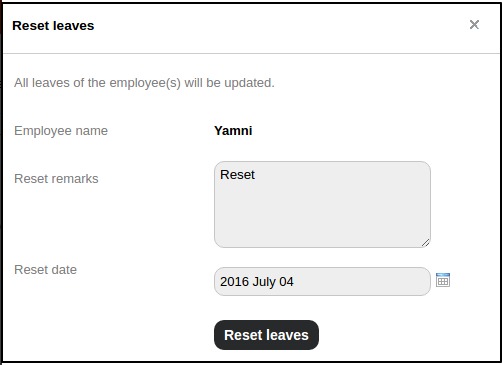
Fig 3.
- Click the Reset leaves button as depicted in Fig 3.
For all employees:
- At the top of your dashboard, click the module access icon > Administration > Human Resource > Employee Leave Management > Leave Reset to open the Leave Reset Records page.
- In the top right, click the Reset leaves button to open the Reset Leaves page.

Fig 4.
- In the top right, click the Reset Leaves of All Employees button.

Fig 5.
- Enter any remarks.
- Select the date when the employee(s) leaves are to be updated.
Note: The leave reset date cannot be set for a future date. If can only be done for the current date or a past date.

Fig 6.
- Click the Reset leaves button.
For more information, watch this-
