- To enter Additional Route details, go to module access icon
 > Administration > Transport > Settings. Click on the Route Additional Details and click on Add Details button to add name of the additional field.

-
In the Name field, enter the name of the field that will be used when setting up vehicle routes.
-
Specify the status of the additional field:
-
Active – An additional detail field with this status will be available when setting up vehicle routes.
-
Inactive – An additional detail field with this status will not be available when setting up vehicle routes.
Note: You can inactivate an additional detail field at any time.
-
Select the Is mandatory checkbox to set this field as a mandatory field that must be filled when setting up vehicle routes.
-
In the Input method field, select the required field input method from the following options:
-
Text Box – Enter brief text information.
-
Select Box – Select one option from a drop-down list.
-
Check Box – Select one or more items from a set of options.
-
Click the Save button.
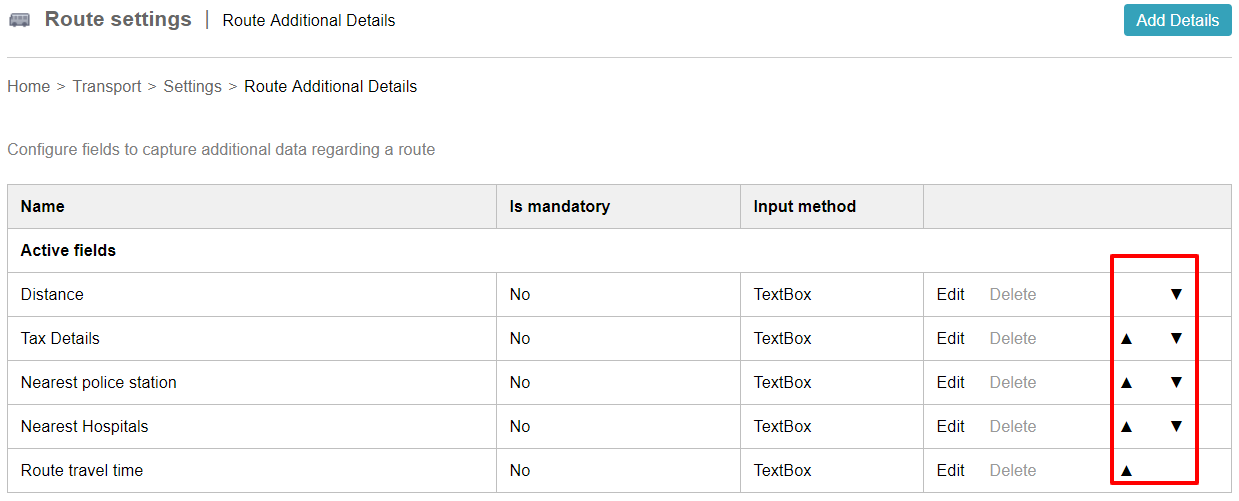
Use the arrow icons ( ) to determine the order that the fields will appear when setting vehicle routes.